Product Features
Overview
Product features in Younium are tags or attributes that can be linked to products within the platform. These features help enrich product data and provide greater flexibility in managing products.
Defining Product Features
You can define and maintain these features under Settings > Products > Product features.
Product features are managed through Settings and include:
-
A unique code for each feature
-
A description explaining the feature
Using Product Features
Once features are defined in Settings, they can be associated with product charges and order product charges. The system supports a one-to-many relationship between charges and features, allowing a single charge to include multiple features.
-
If a charge in the product list includes features, those features are automatically copied to the corresponding order charge when creating an order.
-
Users can then review and modify the feature associations directly within the order, as needed.
This provides flexibility to adjust product feature details at the order product charge without altering the original product configuration.
Framework Product
Background
A product tagged as a "Framework Product" is a multiple charges usage product that can be added to orders in the usual way. The key difference between a regular usage product and a framework product is that the framework product is controlled by the settings in the product list even after it is added to orders.
For instance, if you update the price of a charge for a framework product in the product list, it will automatically update the price on all orders containing that framework product. Similarly, you can add additional charges to the framework product in the product master, and these will automatically be added to all associated orders.
Typical Use Case for Framework Products:
A common scenario for framework products is when you have usage charges that apply to all customers, and additional charges can be added over time without requiring a new contract.
For example, with SMS charges, you might charge customers €0.1 for a Norwegian SMS and €0.05 for a Danish SMS. Later, if you decide to increase the prices, you can simply update the price in the product master, and the updated prices will automatically be applied to all orders. You can also add a new charge for Swedish SMS, and it will be pushed out to all orders with the framework product active.
It is possible to override the charge on a framework product for a specific order. For example, if a customer negotiates a price of €0.08 for a Norwegian SMS, you can apply this change to that particular order. From that point onward, this charge will not be updated with future changes to the charge on the framework product.
How-to
1. Create a Framework Product:
-
Go to Products.
-
Press Create Product.
-
Select Product Type as Multiple Charges.
-
Check the box "Is Framework Product".
2. Change the Price of a Framework Product on an Order:
-
When creating or modifying an order, check the box "Framework Charge Overridden" to apply the overridden price for that specific order.
Stock Products
What is stock products and what is it used for?
Stock products is the product category normally used for physical goods. The use case is if your service also sell some kind of physical goods needed to deliver your service. A example could be a screen or a terminal.
They should be treated as one-offs and using stock product on the product cateogery means Younium also support partial delivery. The example is if a customer ordered 100 units and is supposed to pay in arrears. You can then deliver a subset of units and invoice that amount.
Set up
- Go to Settings > Products > Products categories. Add a new feature and set Is stock product to YES
Create stock product
- Go to Products > Create Product and select the newly created category. Only OneOff charges support partial delivery. Therefore, at least one charge should be set as OneOff. A default quantity can be set, but it is not required.
Create an order with Stock products
- Create order and add the product. The Ordered quantity will per default be set to the default quantity of the product, but it can be changed. The Remaining Quantity is read only and equals to Ordered quantity
- The charge will not create any invoice lines and it is changeable in a Change order, until the user makes a Delivery. Then all fields of the charge that affects the contract are locked in a Change order. (Name, Custom fields, remarks are still editable)
Deliver a stock product
- Open the order with the product charge you have delivered and now want to invoice
- Select the charge and on the three dot menu > Delivery
- The user can either deliver the whole order by accepting the default Quantity and then the charge will be closed
- The user can also decrease the quantity to make a Partial delivery, another charge will be created automatically with the remaining quantity.
- If the user makes a Partial delivery and checks the box Close charges after this delivery then the user will get a confirmation dialog: By closing the charge you will not be able to register additional deliveries. Continue? If the user accepts that the charge is closed.
Invoice delivered stock products
Once a stock product is delivered it can be invoiced as other products. Select a target date that will catch your billing period and create a invoice as normal.
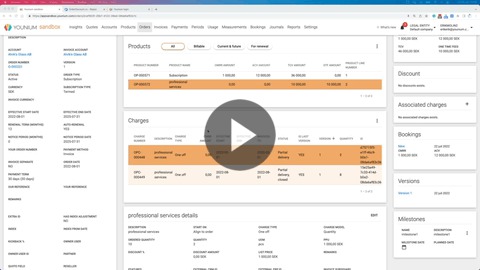
See this video that shows in depth how its done: